
Best Way to Track Multiple AI Coding Agents (2026 Guide)
If you're reading this, you probably code like this:
- Claude Code is doing a large refactor in one terminal.
- Cursor is generating components in another project.
- Codex is running a quick script in a third window.
- You, meanwhile, are on Slack, reading docs, or making coffee.
Then you come back — and you have no idea what finished, what errored, or what's waiting for you to type y.
This post is a practical guide to solving that problem. I'll cover four approaches from simplest to most complete, with honest trade-offs and a comparison table. The goal: help you pick whichever fits your setup, not sell you anything.
Disclosure: I build AgentBell, which is option 4 below. I've tried to write the first three options with enough fidelity that you can decide without needing AgentBell at all.
Why multi-agent tracking is a new problem
Tracking one long-running task is easy. You can watch the terminal, or use a shell trick:
# Play a bell sound when the last command finishes
long-running-command; afplay /System/Library/Sounds/Glass.aiff
Tracking multiple agents across different tools is harder because:
- Each IDE has its own event model. Claude Code has a hooks system. Cursor emits MCP events. VS Code has extension APIs. Codex is CLI-first. There's no standard.
- You don't always know which agent is the bottleneck. If three are running, the one that finishes first might free you to continue — but which is it?
- Mental context is expensive. "Let me just peek at Cursor" costs you 10 seconds and 30 seconds of flow loss. Multiply by 20 peeks a day.
- Notifications fatigue is real. macOS native banners get ignored. Slack-style pings get ignored. You need a system that's passive — always visible but not intrusive.
The best solution isn't necessarily one that notifies the most. It's one that makes state ambient — visible at a glance without demanding attention.
Approach 1: Watch the terminal (manual)
The default. You keep the IDE visible, and you context-switch to check it.
Pros:
- Zero setup.
- Works for any tool.
- No tooling to maintain.
Cons:
- Breaks flow for every check.
- Doesn't scale past 2 agents.
- Stops working entirely if you leave your desk.
When it's fine: solo agent running, short tasks (< 2 minutes), you're actively pairing with the AI.
When it's not: anything longer than 5 minutes, any time you want to do something else while waiting.
Approach 2: Terminal bells and shell hooks
One step up. You rig your shell to beep (or trigger a macOS notification) when commands finish.
For zsh, you can add this to .zshrc:
# Beep when any command in this shell finishes
precmd() {
  if [ $? -ne 0 ]; then
    osascript -e 'display notification "Command failed" with title "Shell"'
  else
    osascript -e 'display notification "Command done" with title "Shell"'
  fi
}
For Claude Code specifically, you can use its hooks system to run arbitrary scripts when the agent finishes:
{
  "hooks": {
    "Stop": [
      {
        "type": "command",
        "command": "osascript -e 'display notification \"Claude done\" with title \"AgentBell\"'"
      }
    ]
  }
}
Pros:
- Real notifications (not just visual).
- Works in the background.
- Simple, customizable.
Cons:
- Different setup per tool (you need a hook for Claude Code, a shell wrapper for Codex, an extension for Cursor).
- Notifications are uniform ("command done") — no distinction between which tool or which task.
- macOS notifications silently disappear after 5 seconds. Miss it and you miss it.
- No unified state. If three notifications fired, you don't know which is which.
When it's fine: single-IDE workflow, you only care about binary "done vs not done" signal.
When it's not: multi-IDE setup, or when you want to see state at a glance without waiting for a notification to fire.
Approach 3: Polling scripts + menu bar utilities
Some devs write cron scripts or menu bar utilities (like BitBar, SwiftBar, or xbar) that poll the state of running processes and surface a summary.
Example — a SwiftBar script that checks if Claude Code is still running:
#!/bin/bash
# claude-status.5s.sh — refreshes every 5 seconds
if pgrep -f "claude" > /dev/null; then
  echo "🟢 Claude running"
else
  echo "⚪️ Claude idle"
fi
Pros:
- Ambient state in the menu bar — no notification required.
- Fully customizable.
- Free.
Cons:
- Polling is fundamentally inaccurate. "Process running" ≠ "task running". Claude Code's process is always running; it's the agent inside that has state.
- You have to write and maintain scripts per IDE.
- No event-driven precision. If Claude finishes and starts a new task in 10 seconds, your polling window misses the transition.
- Error states are hard to detect from outside.
When it's fine: you're comfortable writing shell scripts, you have specific workflow quirks, and you only care about coarse state.
When it's not: you want accurate, event-driven status across multiple IDEs without writing custom code.
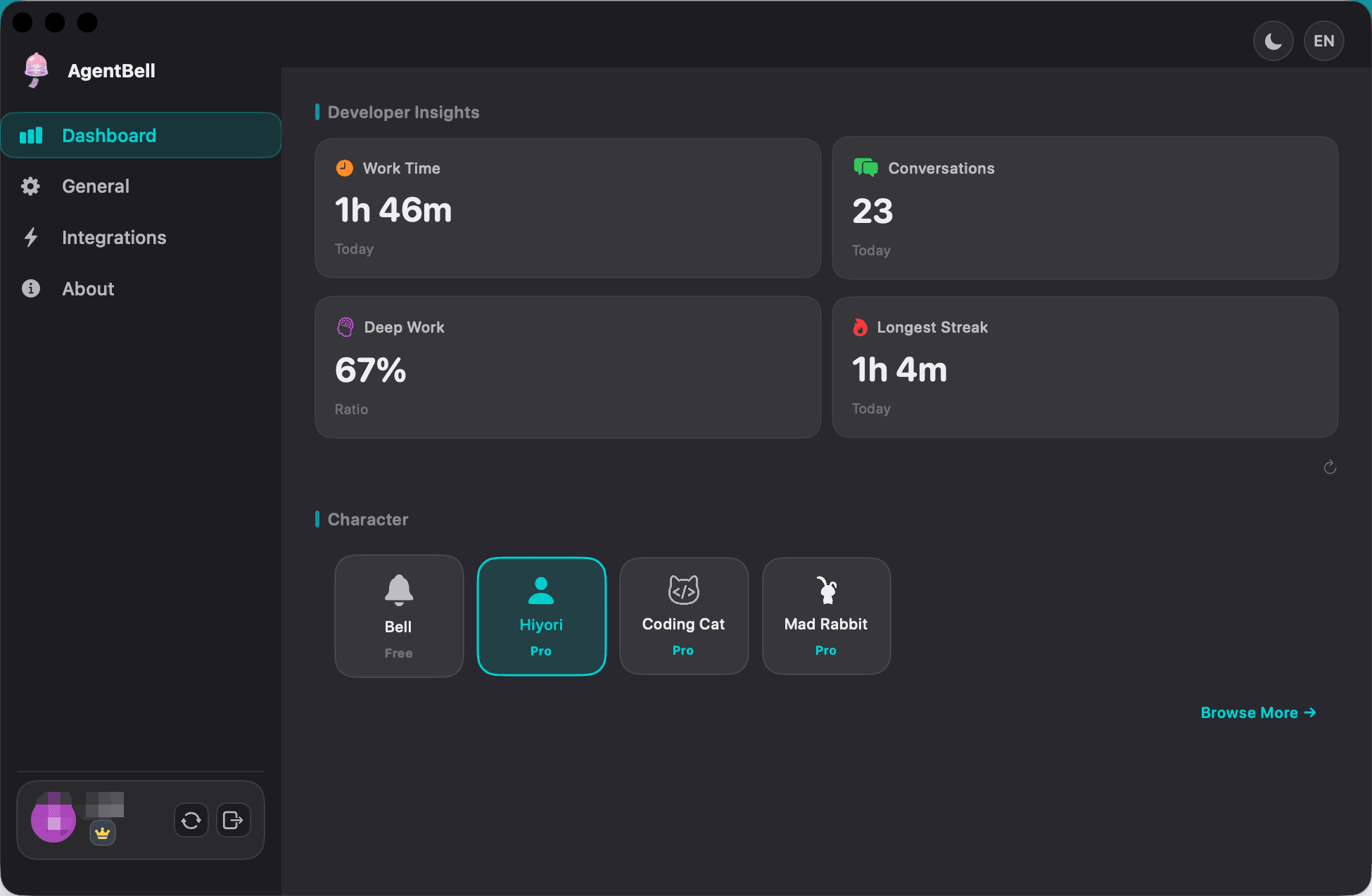
Approach 4: Dedicated menu bar companion (AgentBell)
This is what I ended up building after exhausting approaches 1-3.
The idea: one menu bar app that receives events from each IDE natively (via MCP protocol, native hooks, or file-based IPC) and shows unified state across all of them.
AgentBell supports:
| IDE / Tool | How it's integrated |
|---|---|
| Claude Code | Native hooks (before_agent_start, agent_end) |
| Cursor | MCP server |
| Codex | Hook scripts + file-based IPC |
| Windsurf | MCP server |
| VS Code | MCP server (with extension) |
| OpenClaw | Plugin (hooks) |
When a task starts, completes, or errors in any of these, AgentBell:
- Updates the menu bar icon (color + optional badge count).
- Plays a sound (configurable per event type).
- Fires an optional desktop notification.
- Optionally animates a desktop companion character.
Pros:
- Unified state across every AI IDE you use.
- Event-driven, not polling. Accurate to the second.
- Sound + visual + ambient character (if you want it) — three redundant channels so you don't miss state changes.
- Per-IDE task list in the menu bar popover (click an IDE name → jump to that window).
- Does NOT read your code or conversations. Only reads task state signals.
- Free tier covers all IDE integrations; you only pay if you want the character store, voice packs, or dashboard.
Cons:
- macOS only (Apple Silicon + Intel). No Windows/Linux yet.
- Another app to trust (though we've tried to be transparent: privacy policy, plugins open-source on GitHub).
- If you only use one IDE, the overhead isn't worth it — use approach 2 instead.
When it's worth it: if you run 2+ AI coding agents simultaneously, or if you frequently leave your desk while agents are running.
When it's not: single-tool workflows, or if you're allergic to running any third-party app.
Comparison table
| Feature | Watch terminal | Shell hooks | Polling menu bar | AgentBell |
|---|---|---|---|---|
| Multi-IDE state unified | ❌ | ❌ | ⚠️ Custom work | ✅ |
| Event-driven (not polling) | — | ✅ | ❌ | ✅ |
| Ambient (always visible) | ❌ | ❌ | ✅ | ✅ |
| Setup time | 0 min | 10-60 min | 1-3 hours | 2 min |
| Notification fatigue risk | Low | High | Low | Low-medium (configurable) |
| Cost | Free | Free | Free | Free tier + Pro |
| Platform | Any | Any | Mostly macOS | macOS only |
| Reads your code? | You do | No | No | No |
Practical workflow tips (work with any approach above)
Independent of which tool you choose, these habits help:
1. Name your agent sessions
If you run multiple Claude Code sessions, name them meaningfully: claude --session-name "payment-api-refactor". Makes state tracking easier for humans and tools.
2. Batch long tasks
If you know a task will take 15+ minutes, kick it off before you start something else, not simultaneously. Running three 15-minute tasks in parallel is a context-switching nightmare.
3. Set expectations upfront
Tell your agent the expected duration in the prompt: "This should take about 10 minutes. When done, summarize what you changed." Helps both the agent and your tracking tool show meaningful state.
4. Use distinct sounds per event type
Bug your ears into muscle memory. "Done" sound is one ping. "Error" sound is different. "Waiting for input" is a third. After a week your brain processes them without conscious thought.
5. Don't over-notify
Set up your system so only state transitions fire alerts, not heartbeats. "Task 25% complete" pings are noise. "Task done" is signal.
6. Have a dedicated "agent desk mode"
Full-screen your IDEs, disable all social notifications, run agents in parallel. Treat the wait time as focused time for reading docs, reviewing diffs, or doing something analog.
TL;DR
- If you run one agent at a time: stick with shell hooks (Approach 2). Cheap, simple.
- If you're handy with scripts and don't mind polling inaccuracy: SwiftBar + custom polling (Approach 3).
- If you run multiple AI agents across multiple IDEs: a dedicated tool like AgentBell pays for itself in reclaimed attention. Free tier covers basic multi-IDE tracking across Claude Code, Cursor, Codex, Windsurf, VS Code, and OpenClaw.
- Whatever tool you pick, make state ambient — visible without demanding attention. The goal isn't more notifications; it's fewer context switches.
FAQ
Is there a cross-platform tool for this?
Not a great one yet. AgentBell is macOS-only. On Windows, you can build something with PowerToys Quick Accent plus custom scripts, or use a menu bar alternative like Traybar — both require more manual integration.
Does this work with agents I deploy to the cloud (e.g., via GitHub Copilot Workspace or a Codex batch job)?
Partially. Cloud-deployed agents can POST events to AgentBell's webhook endpoint (or write to a file, or use the MCP server running locally). The state will show up in your menu bar as if it were local. Setup is a bit more involved.
I don't use macOS — can I contribute a Windows / Linux port?
Currently the app is closed-source, but the plugins and MCP server are MIT-licensed on npm. If enough devs want a Windows port, we'll prioritize it — let us know.
Can I use this with a terminal multiplexer like tmux or Zellij?
Yes. Kick off agents inside tmux panes, and point AgentBell's hooks at the shell inside the panes. Works the same way.
Does AgentBell read my code?
No. It only listens for state signals: task started, task done, task errored, task waiting for input. Your source code and agent conversations never leave your machine. See our privacy policy.
I write about AI coding tools and the craft of building developer tools. If you want to know when I publish, follow me on Twitter or subscribe to the agentbell.dev newsletter.