
How to Get Notified When Your Claude Code Task Is Done (Without Watching the Terminal)
Claude Code is brilliant at multi-step tasks — refactoring large codebases, migrating docs, writing test suites. The downside: those tasks take minutes to hours. Sitting at the terminal staring at claude churning is not a workflow.
This post walks through five ways to get notified the moment Claude Code finishes a task, from the dead-simple terminal bell to a multi-IDE menu bar companion. I'll include real config snippets for each, plus the trade-offs.
Disclosure: I build AgentBell — option 5 below. The first four work just fine without it, and I've tested each myself.
The problem in one sentence
You want to know the moment Claude Code's task ends (success or failure) so you can either move on to the next prompt, or context-switch back to review what it did — without having to watch the terminal.
Simple goal. Surprisingly annoying to solve well.
Option 1: Terminal bell (the 30-second solution)
If you just want "Claude Code is done" → audible ping, you can lean on the Unix terminal bell (\a):
# In your .zshrc or .bashrc
# Make the terminal bell ring after any command
claude_with_bell() {
  claude "$@"
  printf '\a'
}
alias claude=claude_with_bell
Then in Terminal.app or iTerm2, make sure bell sound is enabled:
- Terminal.app: Preferences → Profiles → Advanced → Audible bell
- iTerm2: Preferences → Profiles → Terminal → Silence bell off
Pros:
- Zero dependencies.
- Works in any shell.
- Sound plays even if Terminal is in the background.
Cons:
- Single sound — can't distinguish success vs error vs "waiting for user".
- Silently ignores when bell is system-muted.
- You won't see state unless you look at the terminal.
Best for: quick one-off sessions where you just need "something pinged me".
Option 2: macOS notification via osascript
One step up. Fire a real system notification:
# .zshrc
claude_notify() {
  claude "$@"
  exit_code=$?
  if [ $exit_code -eq 0 ]; then
    osascript -e 'display notification "Task complete" with title "Claude Code" sound name "Glass"'
  else
    osascript -e 'display notification "Task failed" with title "Claude Code" sound name "Basso"'
  fi
}
alias claude=claude_notify
Pros:
- Different sound for success vs failure.
- Visible banner — you can see state from across the room.
- Customizable with
terminal-notifierfor more control:brew install terminal-notifier terminal-notifier -title "Claude Code" -message "Done" -sound Glass -open "cursor://"
Cons:
- macOS banners vanish in 5 seconds — miss it and you miss it.
- No state visible after the notification disappears.
- One notification per invocation — doesn't handle mid-task events (e.g., "Claude wants permission").
Best for: solo Claude Code workflows where you glance at the screen occasionally.
Option 3: Claude Code hooks (the native way)
Claude Code ≥ 1.0 has a hooks system that fires arbitrary scripts at specific lifecycle events. This is the officially supported, event-accurate way.
Setup
Create ~/.claude/settings.json:
{
  "hooks": {
    "Stop": [
      {
        "matcher": "",
        "hooks": [
          {
            "type": "command",
            "command": "osascript -e 'display notification \"Claude Code finished\" with title \"Claude\" sound name \"Glass\"'"
          }
        ]
      }
    ],
    "UserPromptSubmit": [
      {
        "matcher": "",
        "hooks": [
          {
            "type": "command",
            "command": "echo \"[$(date)] Claude started\" >> ~/claude-activity.log"
          }
        ]
      }
    ]
  }
}
Available hook events (2026)
| Event | When it fires |
|---|---|
UserPromptSubmit | User sends a prompt |
Stop | Agent finishes responding |
PreToolUse | Before a tool call |
PostToolUse | After a tool call |
Notification | Agent needs permission or input |
SessionStart | Session starts |
SessionEnd | Session ends |
Full reference: Claude Code hooks docs.
Useful hook patterns
Different sound for waiting vs done:
{
  "hooks": {
    "Stop": [
      { "matcher": "", "hooks": [{"type": "command", "command": "afplay /System/Library/Sounds/Glass.aiff"}] }
    ],
    "Notification": [
      { "matcher": "", "hooks": [{"type": "command", "command": "afplay /System/Library/Sounds/Submarine.aiff"}] }
    ]
  }
}
Log every task for later review:
{
  "hooks": {
    "Stop": [
      {
        "matcher": "",
        "hooks": [{
          "type": "command",
          "command": "jq -n --arg ts \"$(date -u +%FT%TZ)\" --arg cwd \"$(pwd)\" '{timestamp:$ts, cwd:$cwd, event:\"stop\"}' >> ~/claude-log.jsonl"
        }]
      }
    ]
  }
}
Pros:
- Official, event-accurate (no polling).
- Per-event granularity (done ≠ waiting ≠ error).
- Configurable at user level (
~/.claude/settings.json) or project level. - Composable — one hook per action, stack them.
Cons:
- Only covers Claude Code. Cursor, Codex, Windsurf have different event systems.
- Banner still disappears after 5 seconds; state isn't persistent.
- Writing + debugging JSON hook configs is friction.
Best for: Claude-Code-centric devs who don't mind a one-time setup.
Option 4: tmux or Zellij status line + polling
If you live in tmux, you can put Claude's state in the status bar:
# ~/.tmux.conf
set -g status-right '#(~/bin/claude-status.sh) | %H:%M'
set -g status-interval 5
~/bin/claude-status.sh:
#!/bin/bash
# Poll Claude Code's state file every 5 seconds
if [ -f ~/.claude/sessions/current.json ]; then
  state=$(jq -r '.status' ~/.claude/sessions/current.json 2>/dev/null)
  case "$state" in
    "running") echo "🟢 Claude running" ;;
    "waiting") echo "🟡 Claude waiting" ;;
    "done")    echo "✅ Claude done" ;;
    *)         echo "⚪️ Claude idle" ;;
  esac
fi
(Adjust the path based on your Claude Code version's state file.)
Pros:
- Ambient — state visible whenever you look at terminal.
- No notification fatigue; just glance at status line.
Cons:
- Polling (5-sec latency typical).
- Only works if you live in tmux.
- Doesn't work when your terminal is hidden.
- Custom per tool, manual upkeep.
Best for: heavy tmux/terminal users with single-IDE workflows.
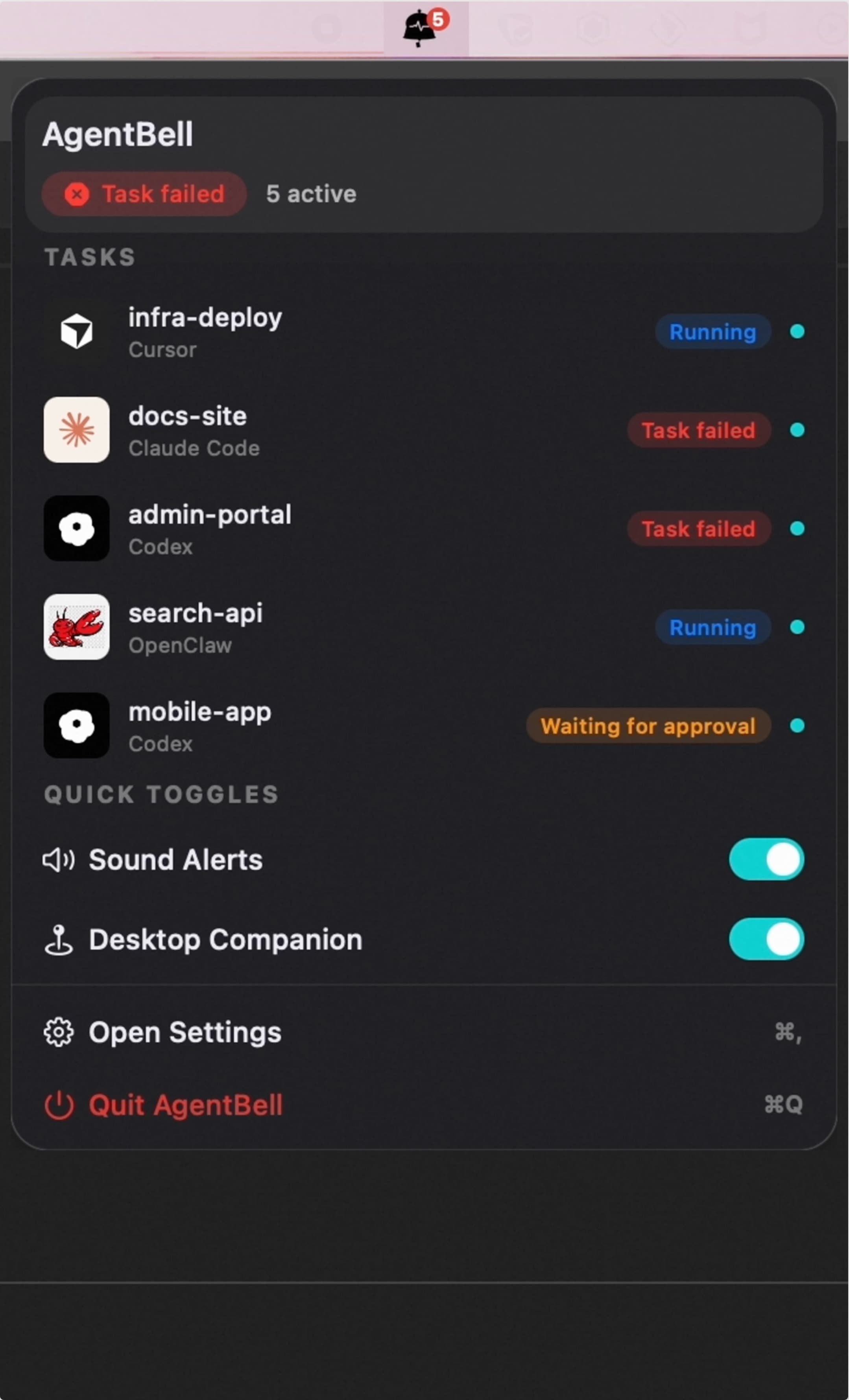
Option 5: Menu bar companion app (AgentBell)
The option I landed on after exhausting 1-4: a dedicated macOS menu bar app that consumes Claude Code's hook events (and similar events from Cursor, Codex, Windsurf, VS Code, OpenClaw) and shows unified state.
How it hooks into Claude Code
AgentBell installs a hook that posts Claude's lifecycle events to a local event file. The menu bar app reads the events and updates state:
// ~/.claude/settings.json (installed automatically by AgentBell)
{
  "hooks": {
    "Stop": [
      { "matcher": "", "hooks": [{"type": "command", "command": "~/.agentbell/hook.sh stop"}] }
    ],
    "Notification": [
      { "matcher": "", "hooks": [{"type": "command", "command": "~/.agentbell/hook.sh waiting"}] }
    ]
  }
}
The hook script is ~20 lines and just writes a JSON line to an event file. Debuggable, replaceable, open-source.
What you get
- Menu bar icon changes color based on state (idle / running / waiting / done / error).
- Click to see per-IDE task list.
- Sound alert per state transition (configurable).
- Optional desktop companion character that reacts animate-style (Live2D or video).
- Works simultaneously with Cursor, Codex, etc. — not just Claude Code.
What it doesn't do
- Doesn't read your code or your chat with Claude. Only reads task state signals.
- Doesn't replace Claude Code — it's a companion layer on top.
- Not cross-platform. macOS only for now.
Pros:
- Multi-IDE unified state.
- Ambient + event-driven (best of both worlds).
- No hook config to maintain — AgentBell manages the install.
- Privacy-respecting.
Cons:
- Another app to trust.
- Overkill if you only use Claude Code.
Free tier covers the Claude Code integration. Download here.
Comparison table
| Option | Setup time | Event-accurate | Multi-IDE | Ambient | Cost |
|---|---|---|---|---|---|
| 1. Terminal bell | 1 min | Partial | ❌ | ❌ | Free |
2. osascript notify | 5 min | ✅ | ❌ | ❌ | Free |
| 3. Claude Code hooks | 15 min | ✅ | ❌ | Partial | Free |
| 4. tmux + polling | 30 min | ❌ (polling) | ❌ | ✅ | Free |
| 5. AgentBell | 2 min | ✅ | ✅ | ✅ | Free tier |
Which one should you pick?
- Just want a sound when Claude finishes? → Option 1 or 2.
- Want different sounds for success/error/waiting? → Option 3.
- Live in tmux and want a status line indicator? → Option 4.
- Run Claude Code + Cursor + Codex together, or frequently leave your desk? → Option 5.
None of these is universally "best". The right answer depends on your workflow.
Extra tips
1. Make your sound alerts meaningful
Pick 3 distinct sounds — one for "done", one for "error", one for "waiting for input". Your brain will learn the difference within a week.
Good macOS built-in sounds for this:
Glass.aiff— light, positive → "done"Basso.aiff— dull, negative → "error"Submarine.aiff— gentle, attention-grabbing → "waiting"
All live in /System/Library/Sounds/.
2. Silence notifications when you're actually pairing
If you're actively watching Claude work, notifications are annoying. Options 3, 4, and 5 let you disable alerts during active sessions. Use Claude's --quiet mode or AgentBell's "focus mode" toggle.
3. Log events for later analysis
If you log every Stop event to a file, you can later compute how long your average Claude Code task takes, what time of day you're most productive, etc. Example:
# With hooks, log each completion
jq -n --arg ts "$(date +%s)" '{timestamp:$ts, event:"done"}' >> ~/claude-events.jsonl
Then a one-liner:
jq -s 'group_by(.event) | map({event: .[0].event, count: length})' ~/claude-events.jsonl
4. Don't over-notify
If you catch yourself silencing AgentBell/your hook notifications for the 3rd time in a day — you have them firing too often. Only notify on state transitions, not on every tool call or intermediate step.
TL;DR
- The simplest working solution is Claude Code's built-in hooks +
osascript(Option 3). 15 minutes to set up. - If you run multiple AI IDEs together, use a dedicated menu bar app (AgentBell is one) — the unified state across Claude Code + Cursor + Codex saves real attention.
- Don't over-notify. Use distinct sounds per event type. Log events for long-term analysis.
Questions, corrections, or your own workflow worth sharing? Ping me on Twitter or open an issue on GitHub.